Making everyday automation accessible in Excel
________
How does it work
An Excel user creates tables, formats cells, highlights data, applies formulas, and analyzes data repeatedly. Instead of doing these actions every day, they can customize Excel for their own needs and unique workflows. They can automate these workflows by creating "Scripts." Once a script is created, it can be edited and reused across varied workflows. Scripts are used by:

Expert Users
These users are self-motivated to find an efficient way to do repetitive tasks to save time. They feel confident using Excel and exploring advanced functionality.

Novice Users
These users are less confident creating their own scripts, but use a teammate's script to automate their everyday workflows.
The story
Working on Excel and the automation space was new and hence quite challenging for me. The product has been around for 30+ years (it's older than me) so it comes with a legacy baggage. Over these past years, as I watched users perform complex actions to make sense of large amounts of data, I was humbled by the scale and reach of the product. Started to realize that Excel has a high learning curve and users often felt the need to learn Excel and it takes them years (if they stick around) to get a hang of it. This is what triggers me, software that doesn't adapt to each user's needs and capability. For my last (and most exciting) project on this team, I worked on making Excel approachable to novice users using AI (this was before Open AI + Microsoft were official 😉). The goal was to let novices run auto-generated tasks without having to learn Excel or code. Users give instructions in natural language and Excel completes the tasks for them. But wait, to understand my journey at Microsoft, let's start from the very beginning!
This is how it began
Towards the end of 2019, a preview version of Office Scripts was released at the Microsoft Ignite event. The team was under pressure to ship fast. The tight deadline affected the quality of the experience. When I joined the team, I was tasked with digesting research results to identify gaps and explore solutions.
“I don't have time to get proficient. Would I be using it enough? Does the learning curve warrant using it? When I use it again, what’s the effort to refresh myself vs. how complex the repetitive task is?”
“This seems hard. What I want to do is easy, but how to do what I want to do is hard. What might help me is a quick recipe for actions to really see this through the best way.”
“This could get complicated really easily, and hard to use at a larger scale. I’d start at a smaller scale. I’d only record a few actions. Maybe then work up to more complex data and complex operations.”
_________
🚀 Shipped 27th May 2021.
Watch launch. Read news.
Design lead - Jeffrey Dunn
Designer - Me!
PM - Petra Renold
Engineers - Darren Miller, Shreedhar T
Feature 1: Increase the return on learning investment by making it easy to find, run, and manage scripts
I was tasked to objectively review the automation feature and bring a fresh perspective. The goal was to establish automations on Excel Web as a modern cloud solution. I had to question the constraints, approach, and the existing design. As someone new on the team, this was an intimidating challenge. I played around with the existing experience, asked a lot of questions, and critically reviewed the feature to identify the problems.


Empty taskpanes = a product opportunity
Users didn't understand how to start creating automations, what to do next after clicking around, and were intimidated by the empty taskpanes. I saw this as an opportunity to make Excel feel more approachable. The idea was to introduce users to automations through these taskpanes.
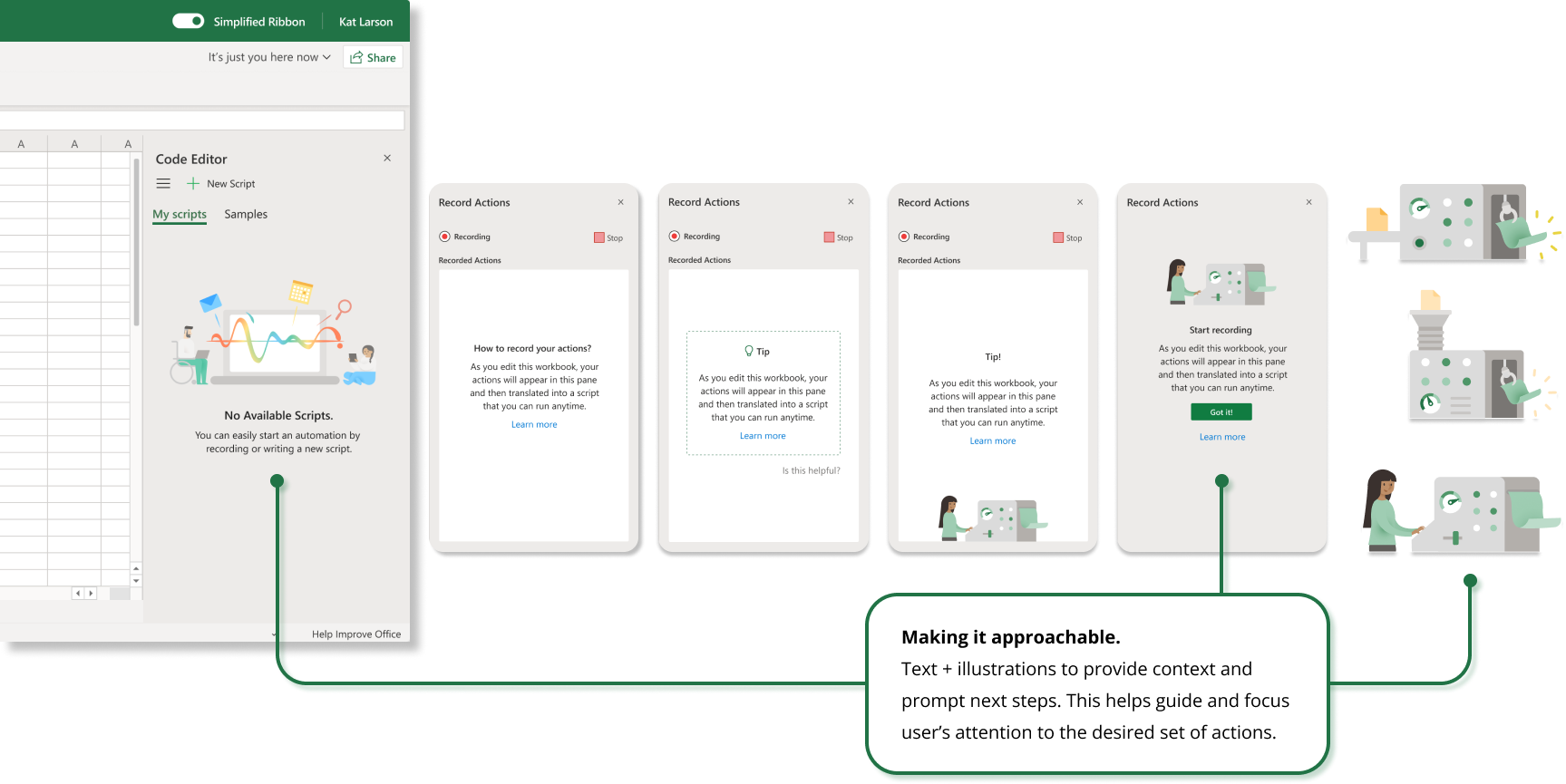
Prototype I built to conduct testing on UT.com
“The logic made sense and the order they appeared in too. I liked how it moved around to highlight where I should be looking. It was intuitive, I did not have any questions.“
Lower the barrier for entry
The goal was to help users harness the power of automations. However, Excel can be intimidating and without some guidance, creating automations can be overwhelming. The idea was to guide users through the process of creation, let them make mistakes, and learn on their own. This could increase their confidence in the feature, and the usage over time.
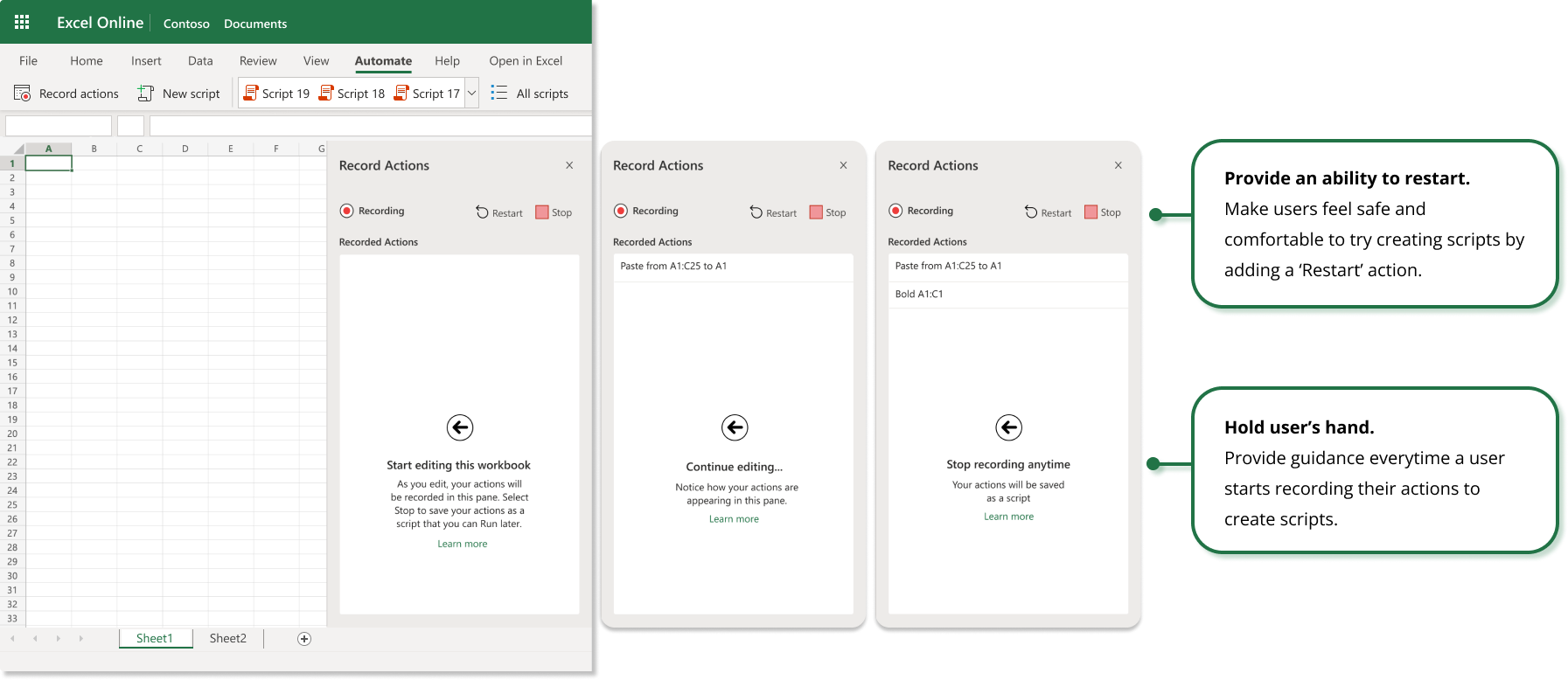
Prototype I built to conduct testing on UT.com
“I can tell its recording, see on right side it is self-explanatory, start inputting data and it would save it.”
“Whatever I input in the left-hand side it will be reflected on the right side.“
Modernize Excel
Users expect to automatically save and store these scripts in the cloud based on their experience of using other modern web tools. However, there was often confusion about saving locally on the Excel desktop app vs saving to the cloud in the newer web app. I tried to simplify this problem by giving users a direct access to the file location. This helped explain where their files were being stored (in the cloud) and established Excel Web as a modern tool compared to it's older desktop app.
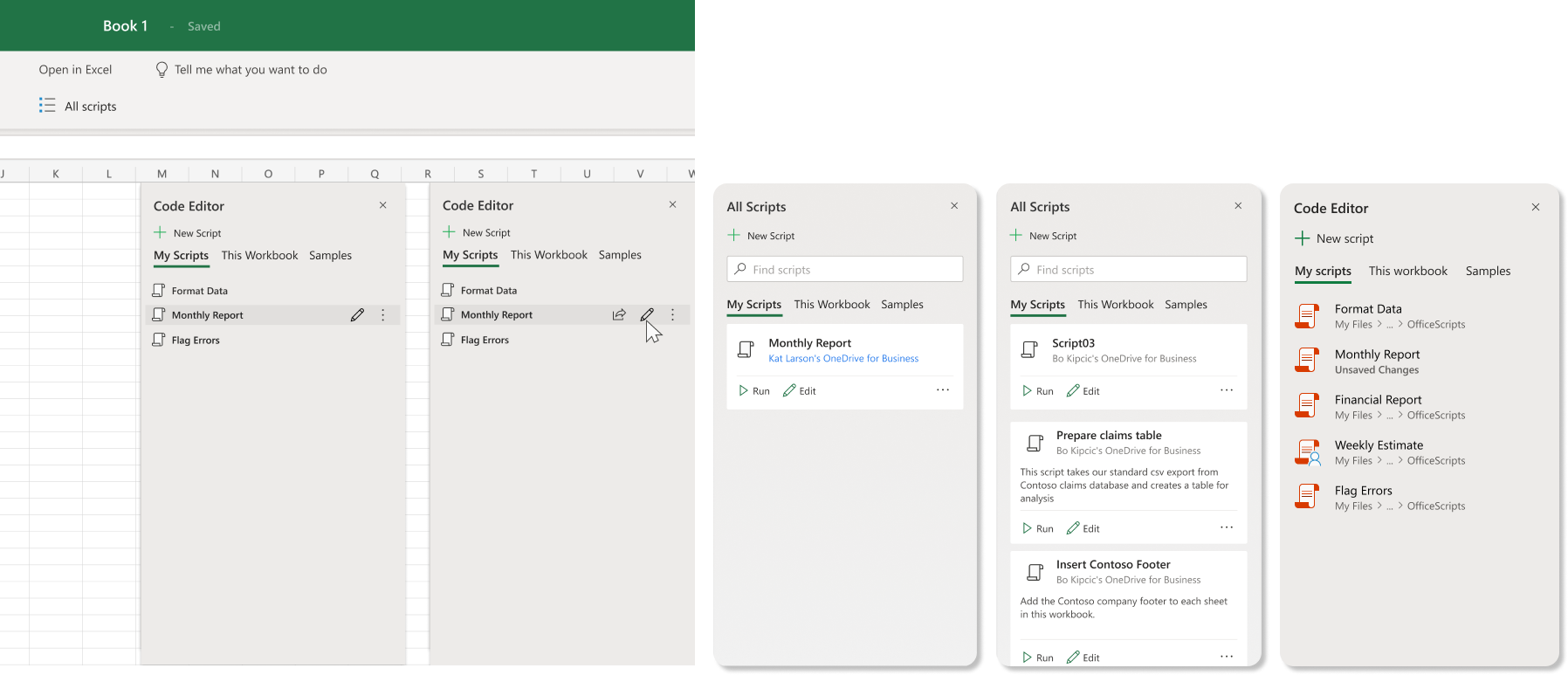

Prototype I built to conduct testing on UT.com
“Right below the title of script 1, where there was unsaved changes, instead there is a OneDrive Microsoft Office scripts link, which I would assume is my personal one comparing it to financial report, for example, where the name ends with finance team that looks more like a shared script.”
Looking back...
This project was my introduction to the world of Excel. Users are protective of their data and trusted Excel to make sense of it all (format, analyze, visualize are some primary scenarios). I realized that a user needed to be really proficient to think about creating automations for themselves, or others. Only the very brave wandered around the tool to find an efficient way of doing their data tasks. This was the problem! Creating, running, and sharing automations had to be easier and intuitive. I spend my time at Microsoft trying to solve this problem.
_________
🚀 Shipped 22nd Feb 2022.
Read article. Read documentation..
Design lead - Jeffery Dunn
Designer - Me!
PM - Nancy Wang
Engineers - Shahzeb Asif, Lexa Hall, and Gergely Kota.
Feature 2: Help users run & use scripts across platforms
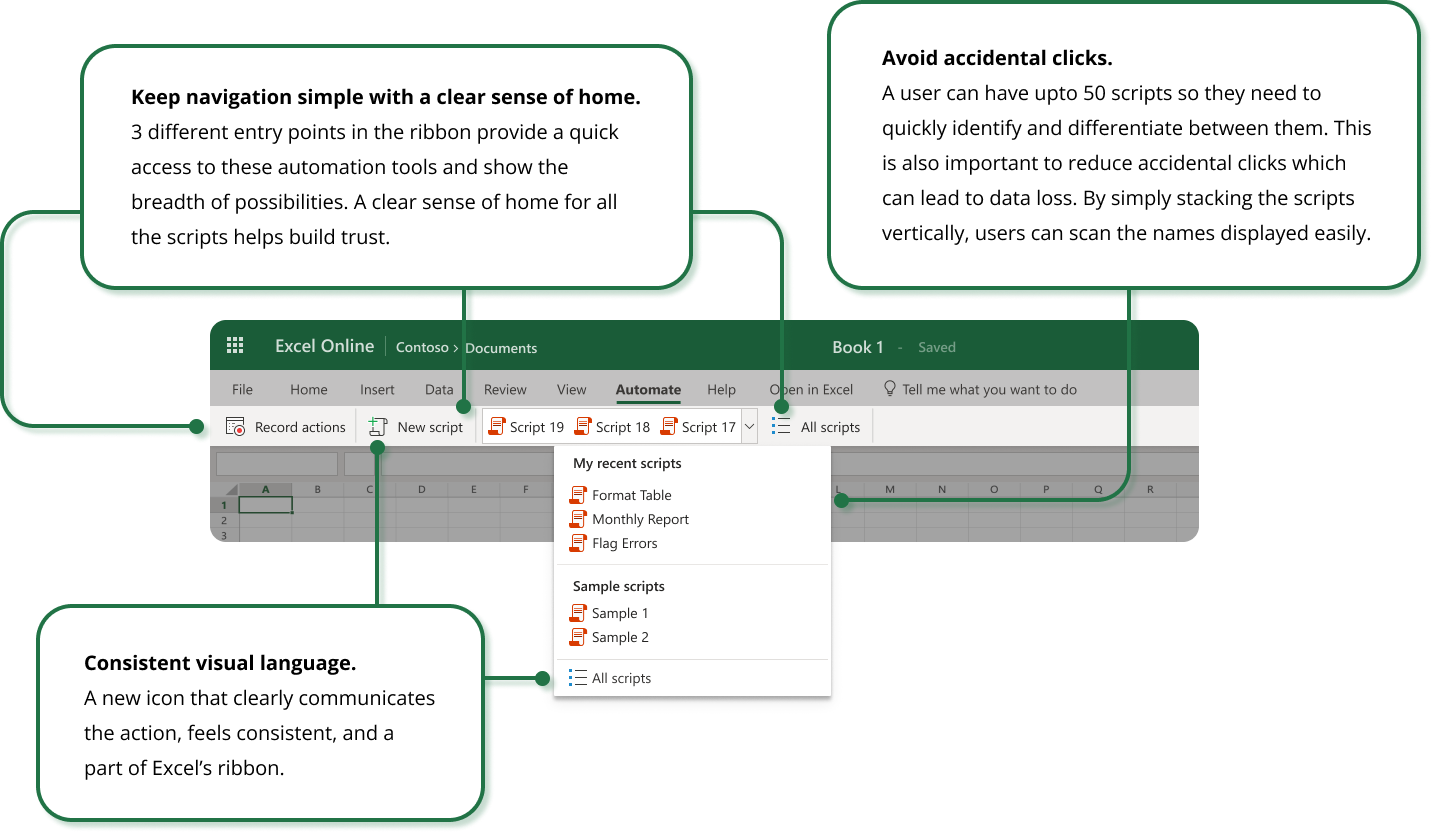
Users weren't able to take advantage of scripts as creating them had a high learning curve. They wanted to share these with other teammates but found it difficult. To use a script, they had to open the 'Automate' tab > Click on 'All Scripts' > Find their script from the list > Open the script > Run the script. These were a lot of steps for using a simple automation. The goal was enabling users to quickly run scripts in their workflows while staying in context.
Understanding mental models
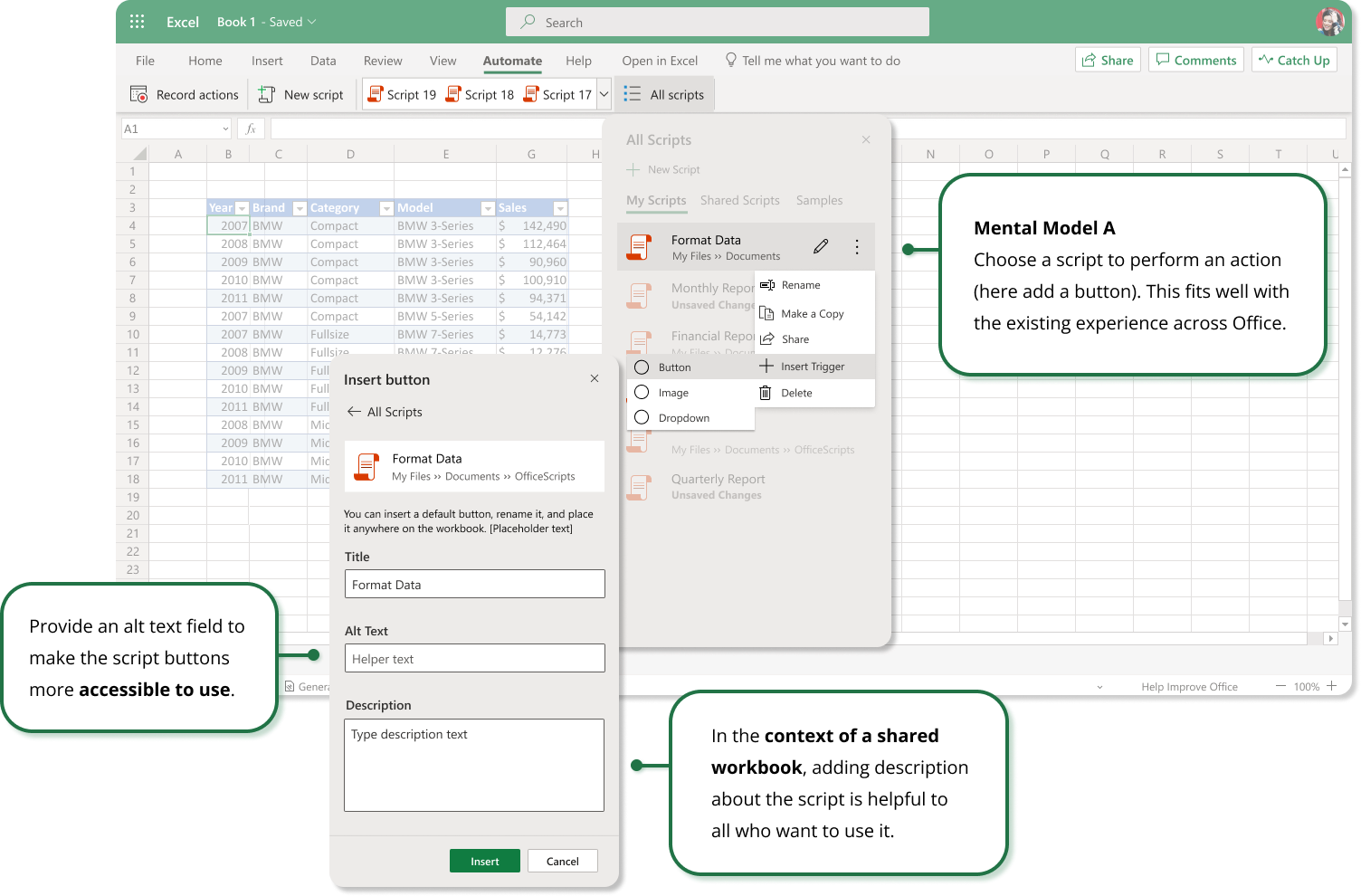
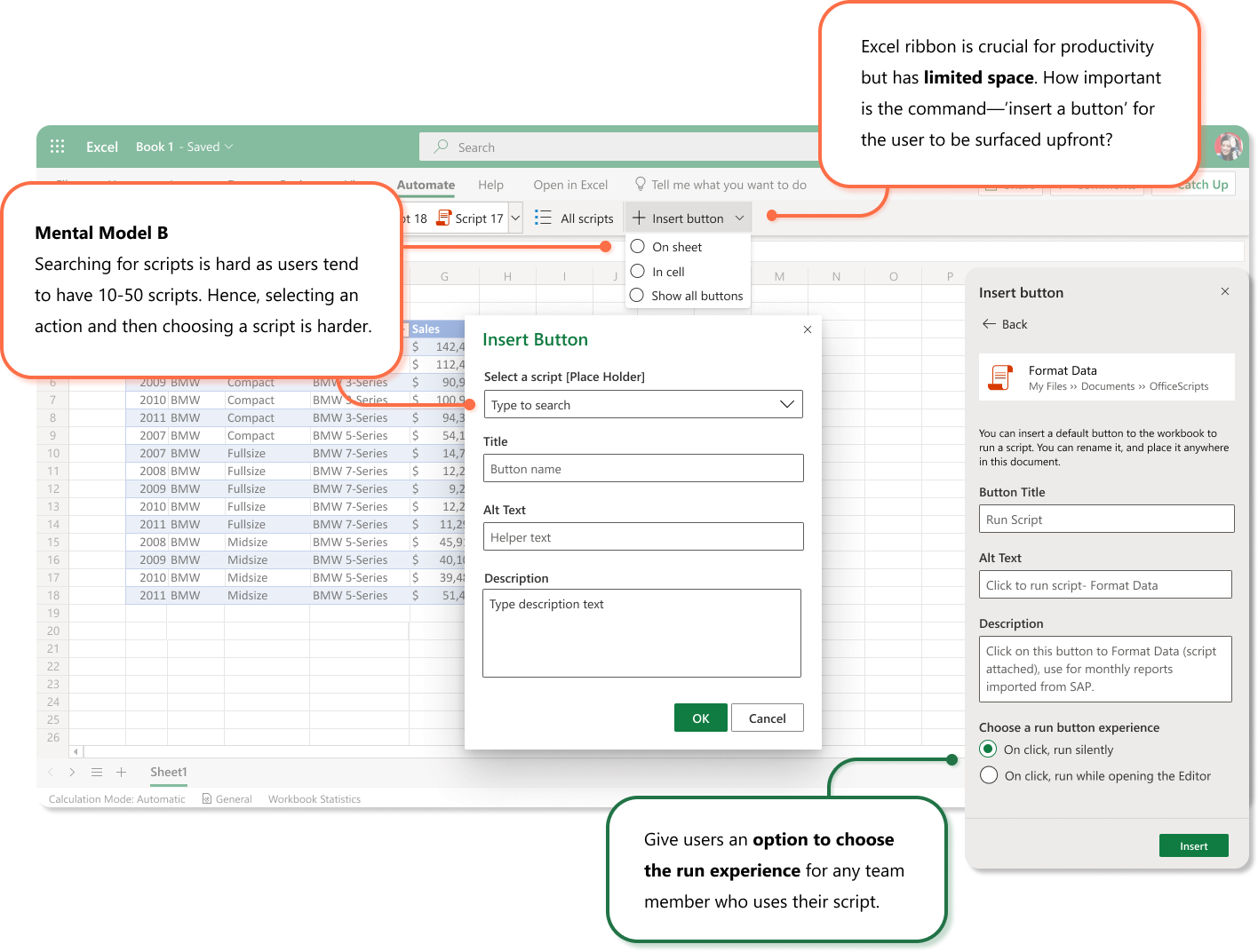
I conducted a brainstorming exercise, we identified that making it easy to run scripts would encourage more users to use scripts (personal or team owned) in their day-to-day workflows regardless of their choice of platform. Through users tests, I observed 2 different ways a user might do this in Excel based on their current behavior.

Concepts that worked, and ones that didn't
The above exercise highlighted that the biggest difference between the two models was the entry point. Model B was a learnt (almost forced) Excel behavior formed over the years based on what was technically possible then. Through user testing, I discovered that Model A was easy to understand since the entry point was within the Automate tab in Excel. I pursued developing Model A.



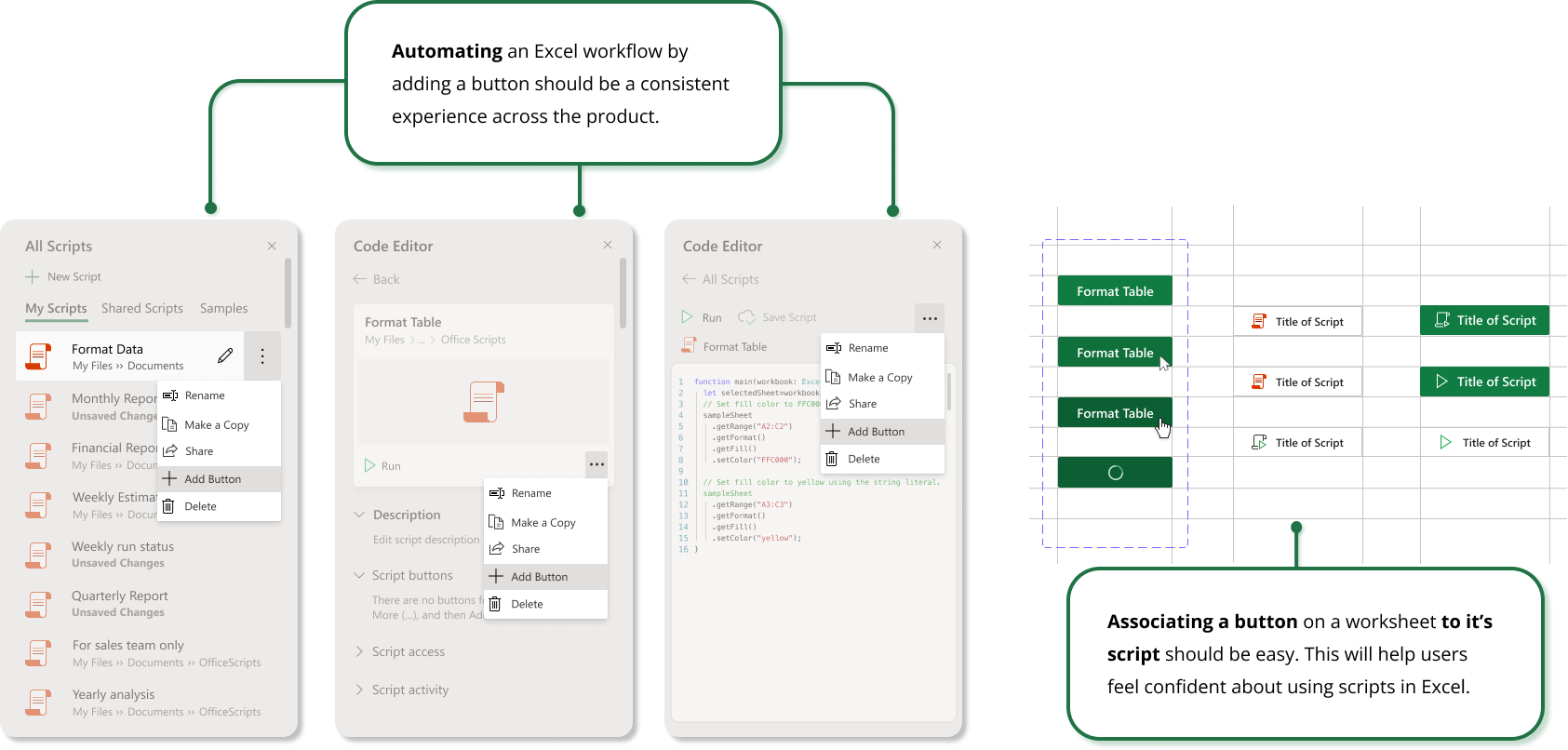
Run a script with 1-click
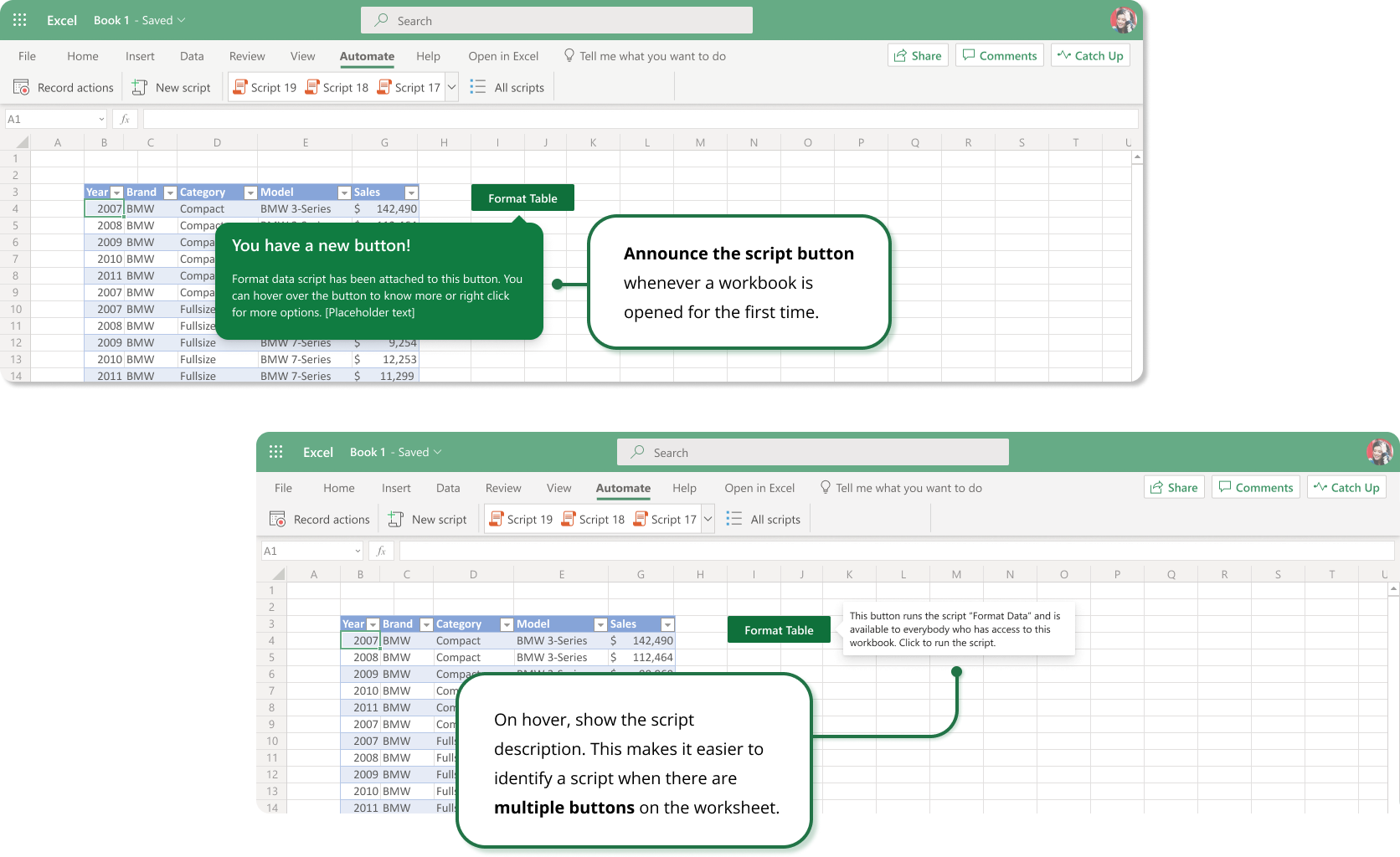
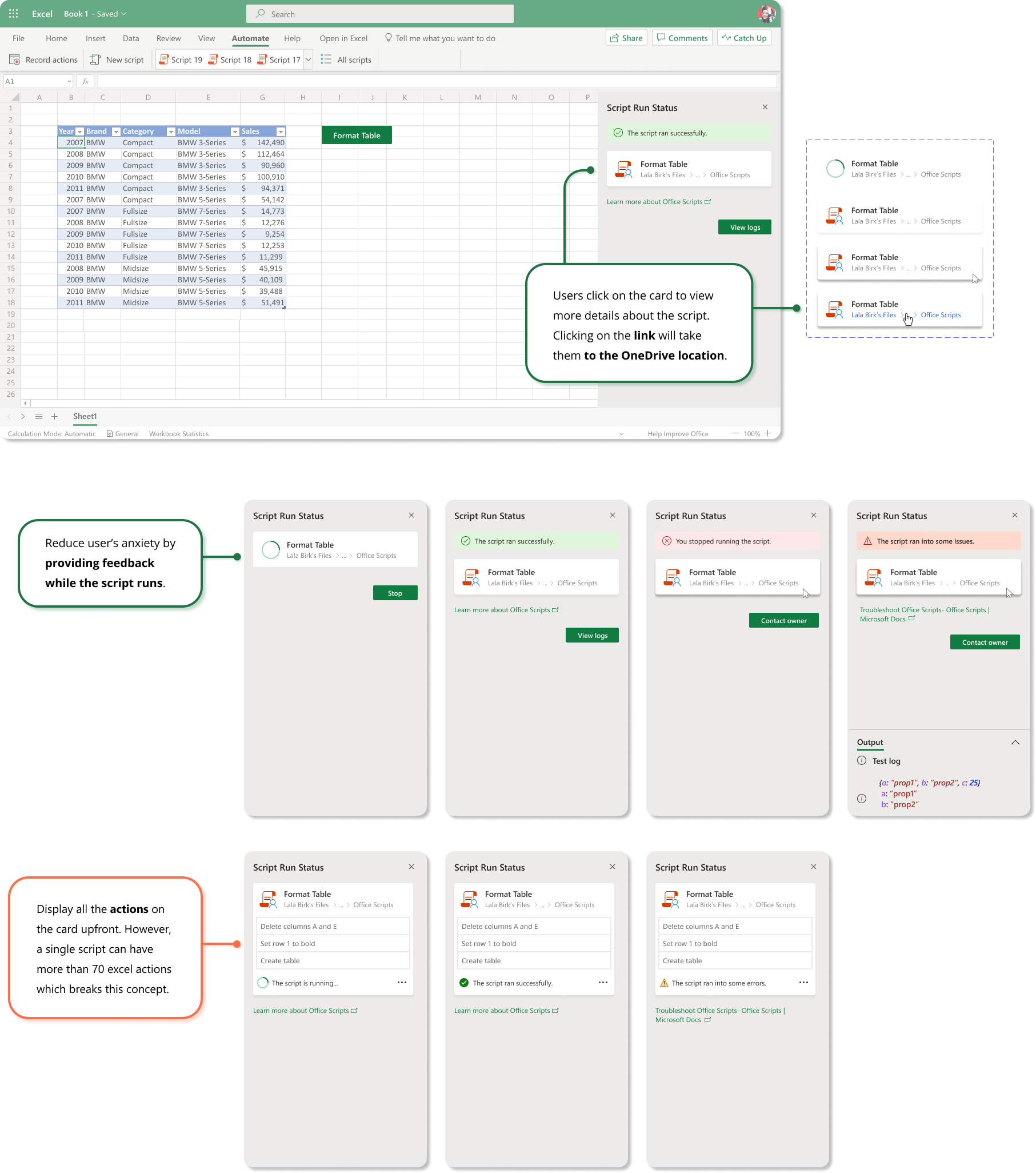
Users can run a script by pressing a button on a worksheet. So easy! With any script, they can go to the more options (…) menu in either the script's details page or the editor task pane and select 'Add Button'. This creates a button in the workbook that runs the associated script when selected. It also shares the script, so everyone who have access to the workbook can use it.
More user testing
"The 'Add Button' feature is great! I think this will help get my team members to use the scripts that I make!"
"In this model of adding a button, there is really nothing confusing about it. I found it easy to access and use my automations. I like the added value of being able to adjust them according to what suites my needs. It's also a good thing that creating an automation does not require extensive knowledge on coding because it makes my work a lot easier and faster."
Prototype I built to conduct testing on UT.com
"Once I saw the 'Automate' tab, it was pretty smooth and easy to find the option to create a button from the script. I did not find this task confusing or difficult in any way whatsoever."
"Getting to the script was easy. Finding the 'add button' feature was a little confusing as I had to go into 'more features'. That should have been on the main menu, there was plenty of space."
"This is exactly how I imagine it to be because the 'Automate' feature is displayed right at the header of all the other functions for the excel sheet. It's not hard to locate at all and it was easy to edit some of the features for your script before you can actually run it on the sheet."
Theming for Windows
Running scripts across platforms meant Office Scripts had to be designed for the different themes supported by Windows. It was a daunting task as I had never worked on dark themes before. I took inspiration from the dark theme work done by my peers for Office products. Learnt a lot! I partnered closely with our engineer Shahzeb, and together, we were able to create a dark theme version of Office Scripts. You can try it today on Windows 11 devices.
Learning from telemetry was fun. We would look at weekly data to analyze and plan for improvements
Data from the first 2 weeks.
In our treatment group, we observed that users preferred sharing scripts with buttons about three times more than the regular share model, with a button share rate of 4.32% compared to 1.46% without buttons. For each script shared via button in the workbook, at least one new user was introduced to Office Scripts. In one tenant, we saw 600 new users as a result of just 5 scripts being assigned to buttons!
Reflections
Working on a product that's been around for more than 3 decades has its own challenges. Improving the product to keep up with the changing times is a very slow and hard process. There are 2 types of people who use this product:
1. Users who have been using Excel for a decade or more. They have spent years trying to learn this product and even the slightest change in the experience upsets them. Can't blame them!
2. Others who compare the product to its newer competitors and want a modern, lighter experience. Including me. I have always felt that Excel needs to modernize quickly.
I think, one way forward is to train Excel to work for users rather than expecting users to learn how to use Excel. My latest (and favorite) project is about creating an experience where users can instruct Excel in natural language and complete their day-to day tasks.
My last project— Excel + Open AI models. Here is a  sneak peak
 ..
Prototype I built to conduct tests on UT.com.


___________


Feature launch @ Microsoft's conference.

University recruiting.